Welcome to Code Forum!

Join a community that supports you and your coding journey from day one. We strive to be a friendly, supportive community that empowers everyone to be better developers. By registering with us, you'll be able to discuss, share and private message with other members of our community.

SignUp Now!
  • Guest, before posting your code please take these rules into consideration:
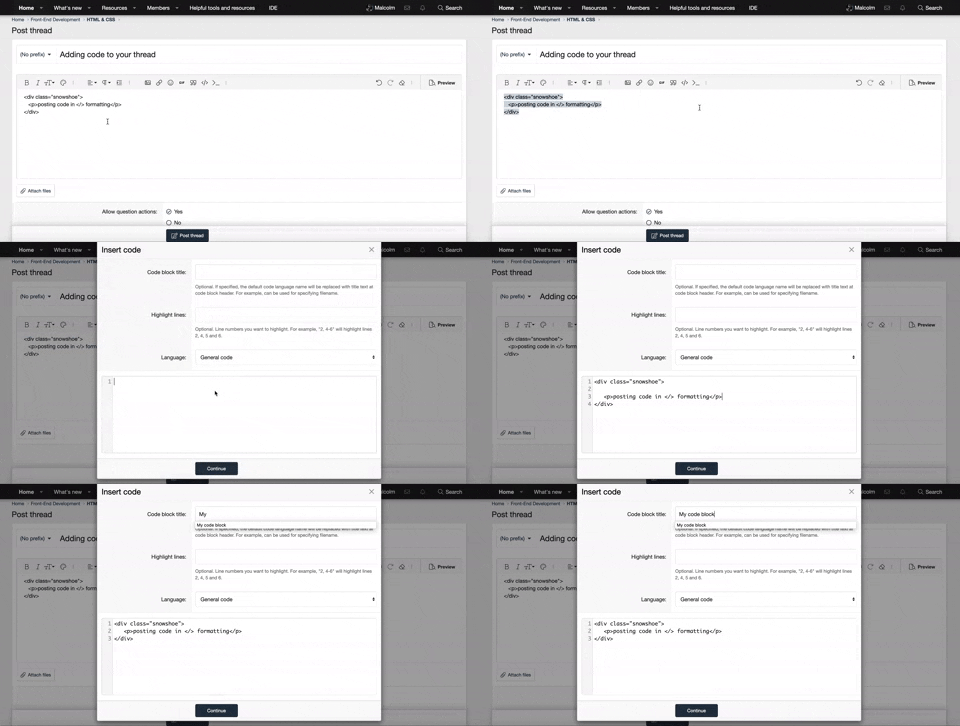
    • It is required to use our BBCode feature to display your code. While within the editor click < / > or >_ and place your code within the BB Code prompt. This helps others with finding a solution by making it easier to read and easier to copy.
    • You can also use markdown to share your code. When using markdown your code will be automatically converted to BBCode. For help with markdown check out the markdown guide.
    • Don't share a wall of code. All we want is the problem area, the code related to your issue.

    GIF shows where to locate </> in the thread and or post editor toolbar.
    To learn more about how to use our BBCode feature, review our "How to post your code into threads" here.

    Thank you, Code Forum.

How to get form elements horizontally aligned?

dave007

Coder
Hi guys n gals,
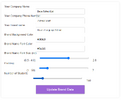
As you can see from the image the labels and the input boxes are not properly aligned horizontally.
Would very much appreciate it if anyone can take a look at the html and css below to help me get this looking better.
chrome_ShEwjqqwRm.png

Here is the HTML:
Code:
<br><br>
                <div id="eduProfileUpdateContainer" style="display: none;">
                    <label for="company_name" id="labelCompany_name"></label>
                    <input type="text" id="company_name"><br>
                    
                    <label for="company_phone" id="labelCompany_phone"></label>
                    <input type="text" id="company_phone"><br>
                    
                    <label for="brand_name" id="labelBrand_name"></label>
                    <input type="text" id="brand_name"><br>
                    
                    <label for="head_bg_color" id="labelBrand_bg_color"></label>
                    <input type="text" id="brand_bg_color"><br>
                    
                    <label for="head_tx_color" id="labelBrand_tx_color"></label>
                    <input type="text" id="brand_tx_color"><br>
                    
                    <label for="head_tx_size" id="labelBrand_tx_size"></label>
                    <span>(0.5 - 4.0)</span>
                    <input type="range" id="brand_tx_size" min="0.5" max="4" step="0.1" value="2.5" oninput="updateTxSizeValue(this.value)">
                    <span id="brand_tx_size_value">2.5</span> <!-- Display the current value of the slider -->
                    
                    <label for="padding" id="labelPadding">Padding</label>
                    <span>(1 - 50)</span>
                    <input type="range" id="padding" min="1" max="50" step="1" value="4" oninput="updatePaddingValue(this.value)">
                    <span id="padding_value">25</span> <!-- Display the current value of the slider -->

                   <label for="student_num" id="labelStudent_num"></label>
                    <input type="range" id="student_num" min="0" max="1000" step="10" value="0" oninput="updateStudentNumValue(this.value)">
                    <span id="student_num_value">0</span> <!-- Display the current value of the slider -->
                    
                    <br><br>
                    <button type="button" id="btnUpdateBrand"></button>
                </div>

And this is the css :
Code:
#progressContainer,#settingsSection, #myprofile, #locationUpdateContainer, #progress, #eduProfileUpdateContainer, #advertContainer {
    width: 100%; /* Set the width to 100% so it doesn't exceed the parent container */
    max-width: 800px; /* Ensure it doesn't grow too large */
    min-width: 300px; /* Optionally set a minimum width for smaller screens */
    margin: 0 auto; /* Center the container */
    text-align: center; /* Center the text inside the container */
    padding: 20px; /* Add padding inside the container */
    box-sizing: border-box; /* Ensure padding doesn't affect width */
    background-color: white;
    border-radius: 8px;
    box-shadow: 0 0 10px rgba(0, 0, 0, 0.1);
    overflow: hidden; /* Prevent overflowing content */
}


/* Container styling */
.container {
    width: 100%;
    max-width: 800px; /* Set a maximum width to limit the size of the container */
    padding: 20px;
    box-sizing: border-box;
    margin: 20px auto; /* Add margin at the top */
    background-color: white;
    border-radius: 8px;
    box-shadow: 0 0 10px rgba(0, 0, 0, 0.1);
}

/* Form styling */
form {
    display: flex;
    flex-direction: column;
    align-items: center;
    text-align: left;
    max-width: 400px;
    width: 100%;
    margin: 0 auto;
}

label {
    display: flex; /* Use flexbox to align items horizontally */
    justify-content: flex-start;
    align-items: flex-start; /* Vertically center the radio button and text */
    margin: 0 0 2px 0; /* Add some space between label blocks */
    white-space: nowrap; /* Prevent text from wrapping */
    width: 100%; /* Ensure the label spans the full width of the form */
    text-align: left; /* Explicitly left-align the text */
}

input {
    padding: 10px;
    width: 100%;
    max-width: 300px;
    margin:0 20px 0 20px;
    border-radius: 5px;
    border: 1px solid #ccc;
}

I have tried to only include the relevant code.
Many thanks
 
To help align your labels and input boxes horizontally, here are a few adjustments you can make to your HTML and CSS:

1. Use Flexbox to Align Form Elements​

If each label and input are in the same row, applying Flexbox can make alignment easier. Here’s an example:
HTML:
<form>
  <div class="form-row">
    <label for="name">Name:</label>
    <input type="text" id="name" name="name">
  </div>

  <div class="form-row">
    <label for="email">Email:</label>
    <input type="email" id="email" name="email">
  </div>
</form>

in CSS
CSS:
.form-row {
  display: flex;
  align-items: center;
  margin-bottom: 1rem;
}

label {
  width: 100px; /* Fixed width to align labels */
}

input {
  flex: 1; /* Takes remaining space in the row */
}

2. Adjust Label and Input Widths​

In this example, each label has a fixed width, so the inputs line up uniformly. Adjust the label width as needed to fit your longest label text. This will keep the input fields aligned to start at the same point horizontally.

3. Use CSS Grid for More Complex Forms​

For more complex forms, CSS Grid can provide precise control:
CSS:
form {
  display: grid;
  grid-template-columns: 100px 1fr; /* Adjust label width */
  gap: 10px;
  align-items: center;
}

label {
  text-align: right; /* Align labels to the right if desired */
}

Using Flexbox or Grid will make your form elements neatly aligned horizontally!
 
Last edited by a moderator:
There is more than one way around this but it requires additional elements. Please note the 2 different structures.

HTML:
<!DOCTYPE html>
<html lang="en">
<head>
    <meta charset="UTF-8">
    <meta name="viewport" content="width=device-width, initial-scale=1.0">
    <title>Document</title>
    <style>
        form div{
            display: flex;
            align-items: center;
        }
        form label{
            display: flex;
            align-items: center;
        }
    </style>
</head>
<body>
 
<form action="">
    <div>
        <label for="one">One</label>
        <input type="text" name="one" id="one">
    </div>
 
    <label for="two">
        <span>Two</span>
        <input type="text" name="two" id="two">
    </label>
</form>

</body>
</html>

Adjust spacing as desired, such as:
CSS:
        form div{
            display: flex;
            align-items: center;
        }
        form div label{
            padding-right: 5px;
        }

        form label{
            display: flex;
            align-items: center;
        }
        form label span{
            padding-right: 5px;
        }
 
Last edited:
There is more than one way around this but it requires additional elements. Please note the 2 different structures.

HTML:
<!DOCTYPE html>
<html lang="en">
<head>
    <meta charset="UTF-8">
    <meta name="viewport" content="width=device-width, initial-scale=1.0">
    <title>Document</title>
    <style>
        form div{
            display: flex;
            align-items: center;
        }
        form label{
            display: flex;
            align-items: center;
        }
    </style>
</head>
<body>
 
<form action="">
    <div>
        <label for="one">One</label>
        <input type="text" name="one" id="one">
    </div>
 
    <label for="two">
        <span>Two</span>
        <input type="text" name="two" id="two">
    </label>
</form>

</body>
</html>

Adjust spacing as desired, such as:
CSS:
        form div{
            display: flex;
            align-items: center;
        }
        form div label{
            padding-right: 5px;
        }

        form label{
            display: flex;
            align-items: center;
        }
        form label span{
            padding-right: 5px;
        }
Thanks, I'll give that a try.
 
Back
Top Bottom