Welcome to Code Forum!

Join a community that supports you and your coding journey from day one. We strive to be a friendly, supportive community that empowers everyone to be better developers. By registering with us, you'll be able to discuss, share and private message with other members of our community.

SignUp Now!
  • Guest, before posting your code please take these rules into consideration:
    • It is required to use our BBCode feature to display your code. While within the editor click < / > or >_ and place your code within the BB Code prompt. This helps others with finding a solution by making it easier to read and easier to copy.
    • You can also use markdown to share your code. When using markdown your code will be automatically converted to BBCode. For help with markdown check out the markdown guide.
    • Don't share a wall of code. All we want is the problem area, the code related to your issue.

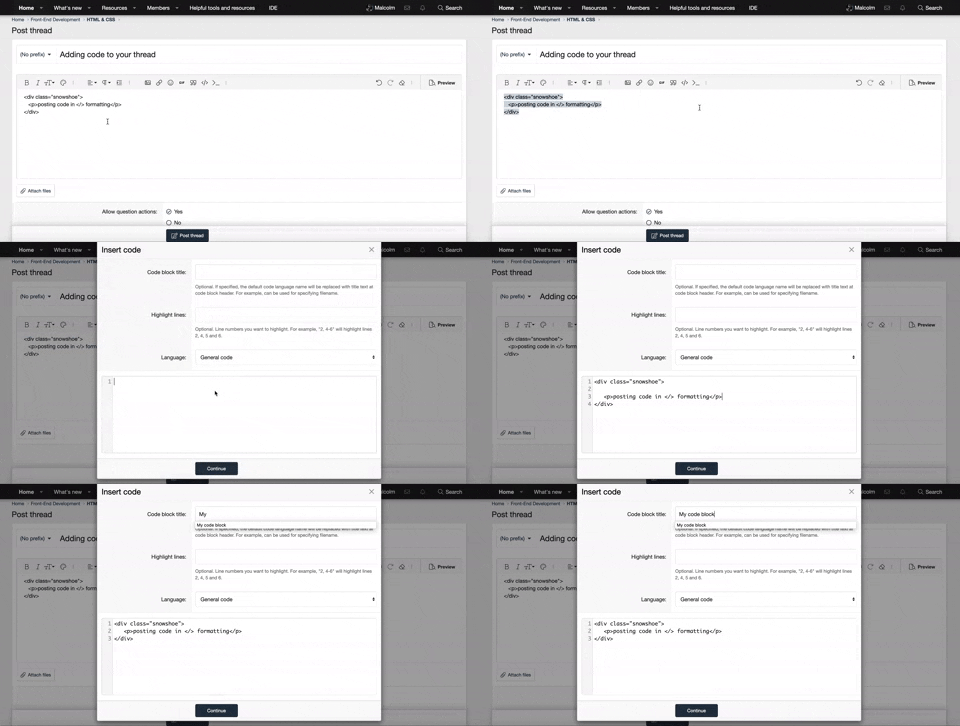
    GIF shows where to locate </> in the thread and or post editor toolbar.
    To learn more about how to use our BBCode feature, review our "How to post your code into threads" here.

    Thank you, Code Forum.

JavaScript How to Pause Text Display and TTS audio with a Pause/Resume button?

chamunt

New Coder
This displays text from a linked text file and accompanying tts audio, line by line, on a web page. I can't manage to get a pause/resume button that will stop/resume the sequence. Any ideas?
Code:
<html>
  <head>
    <title>Cloud Text-to-Speech API Test</title>
  </head>
  <body>
    <h1>Cloud Text-to-Speech API Test</h1>
    <button id="speak-button">Speak</button>
    <div id="text"></div>
<input type="number" id="pause-duration" value="8">

    <script>
      // Replace with your own API key
      const API_KEY = 'AIzaSyDHUKmfjMS8193NjjIPw3jeXXG0MaPgYdc';

      const speak = async () => {
        // Fetch the text from the TXT file
        const response = await fetch('https://prospanish.co.uk/polly_1.txt');
        const text = await response.text();

        // Split the text into lines
        const lines = text.split('\n');

        // Loop through each line
        for (const line of lines) {
          // Split the line into two parts: the English text and the Spanish text
          const [english, spanish] = line.split('=');

          // Display the English text on the webpage
          document.getElementById('text').innerHTML = english;

          // Make a request to the Text-to-Speech API to synthesize the English text
          const englishResponse = await fetch(`https://texttospeech.googleapis.com/v1/text:synthesize?key=${API_KEY}`, {
            method: 'POST',
            headers: {
              'Content-Type': 'application/json',
            },
            body: JSON.stringify({
              input: {
                text: english,
              },
              voice: {
                languageCode: 'en-AU',
                name: 'en-AU-Wavenet-D',
              },
              audioConfig: {
                audioEncoding: 'MP3',
              },
            }),
          });

          // Extract the audio data from the response
          const englishAudioData = await englishResponse.json();
          console.log(englishAudioData);

          // Create an HTML audio element
          const englishAudioElement = document.createElement('audio');

          // Set the audio data as the source of the audio element
          englishAudioElement.src = `data:audio/mp3;base64,${englishAudioData.audioContent}`;

          // Play the audio
          englishAudioElement.play();

          // Wait for the English audio to finish playing
          await new Promise((resolve) => {
            englishAudioElement.addEventListener('ended', resolve);
          });

          
         // Add a delay equal to the value of the input field
await new Promise((resolve) => setTimeout(resolve, document.getElementById('pause-duration').value * 1000));


          // Display the Spanish text on the webpage
          document.getElementById('text').innerHTML = spanish;

          // Make a request to the Text-to-Speech API to synthesize the Spanish text
          const spanishResponse = await fetch(`https://texttospeech.googleapis.com/v1/text:synthesize?key=${API_KEY}`, {
            method: 'POST',
            headers: {
              'Content-Type': 'application/json',
            },
            body: JSON.stringify({
              input: {
                text: spanish,
              },
              voice: {
                languageCode: 'es-US',
                name: 'es-US-Wavenet-C',
              },
              audioConfig: {
                audioEncoding: 'MP3',
              },
            }),
          });

          // Extract the audio data from the response
          const spanishAudioData = await spanishResponse.json();
          console.log(spanishAudioData);

          // Create an HTML audio element
          const spanishAudioElement = document.createElement('audio');

          // Set the audio data as the source of the audio element
          spanishAudioElement.src = `data:audio/mp3;base64,${spanishAudioData.audioContent}`;

          // Play the audio
          spanishAudioElement.play();

          // Wait for the Spanish audio to finish playing
          await new Promise((resolve) => {
            spanishAudioElement.addEventListener('ended', resolve);
          });

          // Add a delay of 5 seconds
          await new Promise((resolve) => setTimeout(resolve, 5000));
        }
      }

      // Add an event listener to the speak button
      document.getElementById('speak-button').addEventListener('click', speak);
    </script>
  </body>
</html>

Thanks
 
I'm having some issues getting your code to work.
First off, the fetch request for polly_1.txt threw a CORS error, so I had to add { mode: 'no-cors' }. I wonder why that happens to me but apparently not for you ?
Now, the fetch returns without error, however the resulting text is an empty string. In the response header it says content-length: 656 which seems way to small (that file is over 3Kb). See image. Because of the empty string, the actual API requests fail :
error: {code: 400, message: 'Invalid input type. Type has to be text or SSML.', status: 'INVALID_ARGUMENT'}
Any ideas ?
 

Attachments

  • a.jpg
    a.jpg
    80.8 KB · Views: 1
I'm having some issues getting your code to work.
First off, the fetch request for polly_1.txt threw a CORS error, so I had to add { mode: 'no-cors' }. I wonder why that happens to me but apparently not for you ?
Now, the fetch returns without error, however the resulting text is an empty string. In the response header it says content-length: 656 which seems way to small (that file is over 3Kb). See image. Because of the empty string, the actual API requests fail :
error: {code: 400, message: 'Invalid input type. Type has to be text or SSML.', status: 'INVALID_ARGUMENT'}
Any ideas ?
I'm not sure, but I know it doesn't load when there is "www" , it needs to be only https://...... My knowledge isn't great, I had some initial sample code which I adapted for my own use.
 
I'm not sure, but I know it doesn't load when there is "www" , it needs to be only https://...... My knowledge isn't great, I had some initial sample code which I adapted for my own use.
Well it seems you got a bit further than I did ! Anyway I have bypassed this problem by putting the text inside the script, and it is now doing TTS just fine. I'll see about these buttons you need.
 
Well it seems you got a bit further than I did ! Anyway I have bypassed this problem by putting the text inside the script, and it is now doing TTS just fine. I'll see about these buttons you need.
Great! I'm not sure if this helps or makes it more complicated, but I now have a pause button, but weirdly it will only pause on one occasion, after that, clicking pause has no effect:
Code:
<html>
  <head>
    <title>Cloud Text-to-Speech API Test</title>
  </head>
  <body>
    <h1>Cloud Text-to-Speech API Test</h1>
    <button id="speak-button">Speak</button>
    <button id="pause-button">Pause</button>
    <div id="text"></div>
    <input type="number" id="pause-duration" value="8">
    <progress id="countdown-bar" max="100" value="0"></progress>
    <script>
      // Replace with your own API key
      const API_KEY = 'AIzaSyDHUKmfjMS8193NjjIPw3jeXXG0MaPgYdc';

      let isPaused = false;

      const speak = async () => {
        // Fetch the text from the TXT file
        const response = await fetch('https://prospanish.co.uk/polly_1.txt');
        const text = await response.text();

        // Split the text into lines
        const lines = text.split('\n');

        // Loop through each line
        for (const line of lines) {
          // Split the line into two parts: the English text and the Spanish text
          const [english, spanish] = line.split('=');

          // Display the English text on the webpage
          document.getElementById('text').innerHTML = english;

          // Make a request to the Text-to-Speech API to synthesize the English text
          const englishResponse = await fetch(`https://texttospeech.googleapis.com/v1/text:synthesize?key=${API_KEY}`, {
            method: 'POST',
            headers: {
              'Content-Type': 'application/json',
            },
            body: JSON.stringify({
              input: {
                text: english,
              },
              voice: {
                languageCode: 'en-AU',
                name: 'en-AU-Wavenet-D',
              },
              audioConfig: {
                audioEncoding: 'MP3',
              },
            }),
          });

          // Extract the audio data from the response
          const englishAudioData = await englishResponse.json();
          console.log(englishAudioData);

          // Create an HTML audio element
          const englishAudioElement = document.createElement('audio');

          // Set the audio data as the source of the audio element
          englishAudioElement.src = `data:audio/mp3;base64,${englishAudioData.audioContent}`;

          // Play the audio
          englishAudioElement.play();

          // Wait for the English audio to finish playing
          await new Promise((resolve) => {
            englishAudioElement.addEventListener('ended', resolve);
          });

          // Set the value of the countdown bar to 0
          document.getElementById('countdown-bar').value = 0;

          // Get the duration of the pause from the input field
          const pauseDuration = document.getElementById('pause-duration').value * 1000;

          // Update the value of the countdown bar every 100 milliseconds until it reaches the max value
          while (document.getElementById('countdown-bar').value < 100) {
            // Check if the pause button has been pressed
            if (isPaused) {
              // If the pause button has been pressed, wait for it to be unpaused before continuing
              await new Promise((resolve) => {
                document.getElementById('pause-button').addEventListener('click', () => {
                  isPaused = false;
                  resolve();
                });
              });
            } else {
              // If the pause button has not been pressed, continue updating the countdown bar
              await new Promise((resolve) => setTimeout(resolve, 100));
              document.getElementById('countdown-bar').value += (100 / (pauseDuration / 100));
            }
          }

          // Display the Spanish text on the webpage, after the English text
          document.getElementById('text').innerHTML += `<br>${spanish}`;

          // Make a request to the Text-to-Speech API to synthesize the Spanish text
          const spanishResponse = await fetch(`https://texttospeech.googleapis.com/v1/text:synthesize?key=${API_KEY}`, {
            method: 'POST',
            headers: {
              'Content-Type': 'application/json',
            },
            body: JSON.stringify({
              input: {
                text: spanish,
              },
              voice: {
                languageCode: 'es-US',
                name: 'es-US-Wavenet-C',
              },
              audioConfig: {
                audioEncoding: 'MP3',
              },
            }),
          });

          // Extract the audio data from the response
          const spanishAudioData = await spanishResponse.json();
          console.log(spanishAudioData);

          // Create an HTML audio element
          const spanishAudioElement = document.createElement('audio');

          // Set the audio data as the source of the audio element
          spanishAudioElement.src = `data:audio/mp3;base64,${spanishAudioData.audioContent}`;

          // Play the audio
          spanishAudioElement.play();

          // Wait for the Spanish audio to finish playing
          await new Promise((resolve) => {
            spanishAudioElement.addEventListener('ended', resolve);
          });
        }
      };

      // Add an event listener to the speak button
      document.getElementById('speak-button').addEventListener('click', speak);

      // Add an event listener to the pause button
      document.getElementById('pause-button').addEventListener('click', () => {
        isPaused = !isPaused;
      });
    </script>
  </body>
</html>

 
I'm not at all sure about your construction with re-adding the event listener every time. Is this something you've found somewhere ?
Anyway I am currently struggling with a similar problem. My solution for the play request to wait until the previous play request is finished only works the first time too. Still at a loss as to why. Must be because everything is happening asynchronously. I'll keep working on it.
 
I'm not at all sure about your construction with re-adding the event listener every time. Is this something you've found somewhere ?
Anyway I am currently struggling with a similar problem. My solution for the play request to wait until the previous play request is finished only works the first time too. Still at a loss as to why. Must be because everything is happening asynchronously. I'll keep working on it.
I know, it's a bit of a mystery. Yes, I'm not a programmer so have been cobbling together the bits. No worries, though, I'm sure I'll find a way. Big thanks for giving it a go.
 

Buy us a coffee!

Buy me a coffee.
Back
Top Bottom