In this tutorial we will build a simple pong game with python and pygame.
The final result should be simular to the below image
Pygame can be installed using pip install pygame or python3 -m pip install pygame
Create a python file called pong.py in the text editor of choice. I prefer vscode. Others are atom(no longer supported), notepad++, and pycharm.
In the script we will
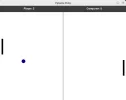
The final result should be simular to the below image
Pygame can be installed using pip install pygame or python3 -m pip install pygame
Create a python file called pong.py in the text editor of choice. I prefer vscode. Others are atom(no longer supported), notepad++, and pycharm.
In the script we will
- import needed modules
- initiate pygame
- create the window size
- set screen mode and caption
- setup a while loop
- set the background color for the screen
- catch pygame events and key presses
- setup a way to exit pygame
- Create the center line for the pong table
- update pygame screen
- set the frame rate
Python:
# Do the imports
import pygame
import sys

# Itnitiate pygame
pygame.init()
# Create the window size
window = (800,600)
# Setup the screen and caption
screen = pygame.display.set_mode(window)
pygame.display.set_caption('Pygame Pong')

# Setup the while loop
running = True
while running:
    # Screen background-color
    screen.fill('white')
    # Catch pygame events
    event = pygame.event.poll()
    # Is the user trying to exit
    # Catch the event and exit
    if event.type == pygame.QUIT:
        running = False
    # Catch event keys. If esc is pressed exit pygame
    keys = pygame.key.get_pressed()
    if keys[pygame.K_ESCAPE]:
        running = False
    '''
    Draw a center line for the court
    Arguments are:
    screen (surface the line is drawn on)
    color of the line (black)
    Position of the line:
       [window[0]//2] - the first number of our window tuple that we created
       divided by 2
    The 0 is the top of the window
    The next argument is the width divided  by 2 and the height of the screen
    The final argument is the width of the line
    '''
    pygame.draw.line(screen, 'black', [window[0]//2, 0], [window[0]//2, window[1]], 3)

    # Update the screen window
    pygame.display.flip()
    # Set frame rate
    pygame.time.Clock().tick(60)
# Exit pygame
pygame.quit()