Welcome to Code Forum!

Join a community that supports you and your coding journey from day one. We strive to be a friendly, supportive community that empowers everyone to be better developers. By registering with us, you'll be able to discuss, share and private message with other members of our community.

SignUp Now!
  • Guest, before posting your code please take these rules into consideration:
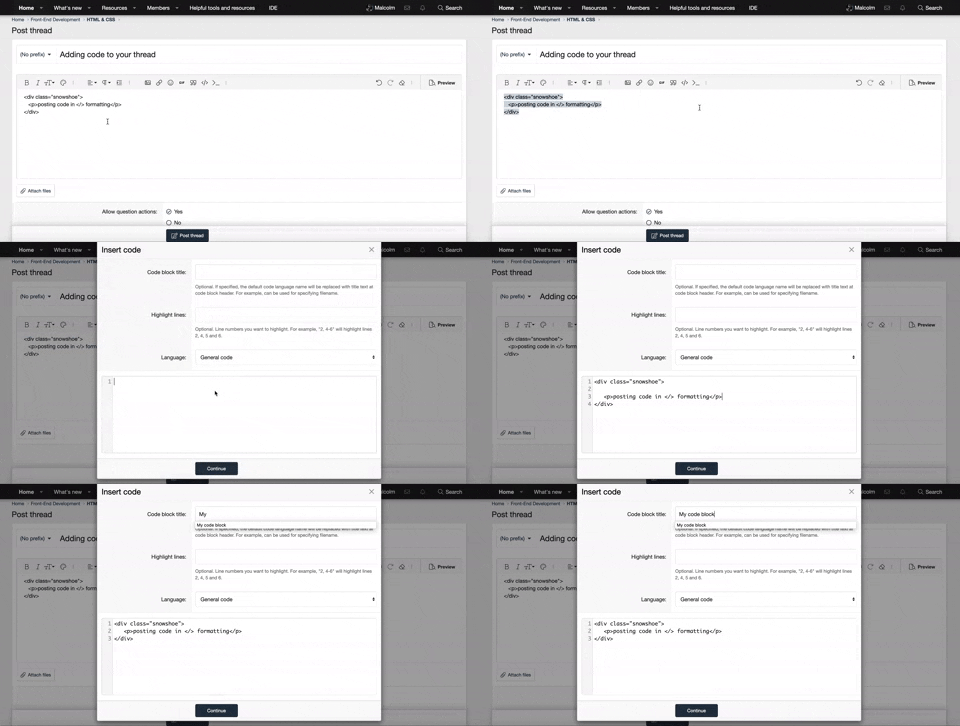
    • It is required to use our BBCode feature to display your code. While within the editor click < / > or >_ and place your code within the BB Code prompt. This helps others with finding a solution by making it easier to read and easier to copy.
    • You can also use markdown to share your code. When using markdown your code will be automatically converted to BBCode. For help with markdown check out the markdown guide.
    • Don't share a wall of code. All we want is the problem area, the code related to your issue.

    GIF shows where to locate </> in the thread and or post editor toolbar.
    To learn more about how to use our BBCode feature, review our "How to post your code into threads" here.

    Thank you, Code Forum.

Python Setting up Python on Mac - newbie

As a student and total newbie to code, and Python more specifically, I'm having some issues installing pip.

Im following a textbook which proposes the following code:

sudo python get-pip.py

Im getting the following response:

python: can't open file 'get-pip.py': [Errno 2] No such file or directory

Ive tried to download the script from https://bootstrap.pypa.io/get-pip.py and save to file, this hasn't provided any means or form of progress - totally flummoxed .

Apologies for the super basic question, any assistance gratefully received.
 
I'm not familiar with the Mac, but from your error it seems you are running the bash shell on some Unix/Linux version. You need to find out in which directory pip has been installed (assuming it has been) and put that directory in your PATH variable (don't forget to export it!). Alternatively, create an alias "pip" referring to the full path name - though pip will likely need other stuff from the same directory so setting PATH is the best way to go.
To find where pip lives, you can use the "find" command :
Bash:
find / -name pip
 
OK, so I've followed the link to update (https://www.freecodecamp.org/news/python-version-on-mac-update/). That appears to have completed without too much issue.

However, I'm still having issues getting pip to run using the code 'pip install tweepy'. Im getting the following as a response:

-bash: pip: command not found

Likely operator error, any guidance welcomed.

Thanks.
I'm not familiar with the Mac, but from your error it seems you are running the bash shell on some Unix/Linux version. You need to find out in which directory pip has been installed (assuming it has been) and put that directory in your PATH variable (don't forget to export it!). Alternatively, create an alias "pip" referring to the full path name - though pip will likely need other stuff from the same directory so setting PATH is the best way to go.
To find where pip lives, you can use the "find" command :
Bash:
find / -name pip[/CO
[/QUOTE]

What does it say if you do pip3 install zip
Command not found.
 
I'm not familiar with the Mac, but from your error it seems you are running the bash shell on some Unix/Linux version. You need to find out in which directory pip has been installed (assuming it has been) and put that directory in your PATH variable (don't forget to export it!). Alternatively, create an alias "pip" referring to the full path name - though pip will likely need other stuff from the same directory so setting PATH is the best way to go.
To find where pip lives, you can use the "find" command :
Bash:
find / -name pip
I suspect you're right regards the Bash Shell. I believe i know how to locate pip, i'm unsure on how to put that directory into my PATH variable; nor export it. Could you explain how best to go about this?
 
Something like this :
Bash:
PATH=$PATH:/directory-where-pip-lives
export PATH

You would typically do this in your login profile or .bashrc.
 

Latest posts

Buy us a coffee!

Buy me a coffee.
Back
Top Bottom