jasonc310771
New Coder
I am using the https://github.com/blasten/turn.js/tree/master I used the demo magazine single page code.
This is what I currely have.
The turn effect works well, as required. But there is a gap above and below which I need removed, so the turn page effect is overlaid on the image corners. I put some borders around the elements to see if I could figure out where the issue was but still not finding this out after a few days now. Can anyone see what is causing the gap to show and what I can do, change, add to fix this ?
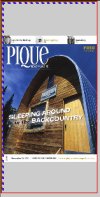
This is what I currely have.
The turn effect works well, as required. But there is a gap above and below which I need removed, so the turn page effect is overlaid on the image corners. I put some borders around the elements to see if I could figure out where the issue was but still not finding this out after a few days now. Can anyone see what is causing the gap to show and what I can do, change, add to fix this ?
Code:
<!doctype html>
<html>
<head>
  <script type="text/javascript" src="https://code.jquery.com/jquery-1.7.1.min.js"></script>
  <script type="text/javascript" src="scripts/turn.min.js"></script>

  <style type="text/css">
body {
  background: #ccc;
  margin: 0;
  padding: 0;
}

#magazine-container {
  border: 2px solid red;
  width: 300px;
  height: 600px;
  overflow: hidden;
  position: absolute;
  top: 0;
  left: 0;
  margin: 0;
  padding: 0;
}

#magazine {
  border: 2px solid green;
  width: 100%;
  height: 100%;
  font-size: 0;
  margin: 0;
  padding: 0;
}

#magazine .turn-page {
  background-size: contain;
  background-repeat: no-repeat;
  background-position: center;
  display: inline-block;
  vertical-align: top;
  position: absolute;
  top: 0;
  right: 0;
  width: 50px;
  height: 50px;
  z-index: 1;
  margin: 0;
  padding: 0;
}

#magazine .turn-page img {
  width: 100%;
  height: 100%;
  object-fit: contain;
  display: block;
  margin: 0;
  padding: 0;
}


.turn-page {
border: 3px dashed red;
  margin: 0 !important;
  padding: 0 !important;
}


img {
border: 3px dashed blue;
  display: block;
  margin: 0;
  padding: 0;
}

  </style>
</head>
<body>


<div id="magazine-container">
 <div id="magazine">
  <div class="turn-page" style="background-image:url(pages/01.jpg)"><img src="pages/01.jpg" alt="Page 1"></div>
  <div class="turn-page" style="background-image:url(pages/02.jpg)"><img src="pages/02.jpg" alt="Page 2"></div>
  <div class="turn-page" style="background-image:url(pages/03.jpg)"><img src="pages/03.jpg" alt="Page 3"></div>
  <div class="turn-page" style="background-image:url(pages/04.jpg)"><img src="pages/04.jpg" alt="Page 4"></div>
  <div class="turn-page" style="background-image:url(pages/05.jpg)"><img src="pages/05.jpg" alt="Page 5"></div>
  <div class="turn-page" style="background-image:url(pages/06.jpg)"><img src="pages/06.jpg" alt="Page 6"></div>
 </div>
</div>

  <script type="text/javascript">
    $(window).ready(function() {
      // Initialize the magazine
      $('#magazine').turn({
        display: 'single',
        acceleration: true,
        gradients: !$.isTouch,
        elevation: 50,
        when: {
          turned: function(e, page) {
            /*console.log('Current view: ', $(this).turn('view'));*/
          }
        }
      });

      // Set the initial height of the magazine
      resizeMagazine();

      // Add a window resize event listener
      $(window).resize(function() {
        resizeMagazine();
      });
    });

    function resizeMagazine() {
      // Get the current window height
      var containerHeight = $('#magazine-container').height();

      // Set the height of the magazine container
      $('#magazine').height(containerHeight);

      // Set the height of the turn-page elements
      $('#magazine .turn-page').height(containerHeight);

      // Refresh the magazine to update the layout
      $('#magazine').turn('size', '100%', containerHeight);
    }

    $(window).bind('keydown', function(e) {
      if (e.keyCode == 37)
        $('#magazine').turn('previous');
      else if (e.keyCode == 39)
        $('#magazine').turn('next');
    });
  </script>

</body>
</html>