Welcome to Code Forum!

Join a community that supports you and your coding journey from day one. We strive to be a friendly, supportive community that empowers everyone to be better developers. By registering with us, you'll be able to discuss, share and private message with other members of our community.

SignUp Now!
  • Guest, before posting your code please take these rules into consideration:
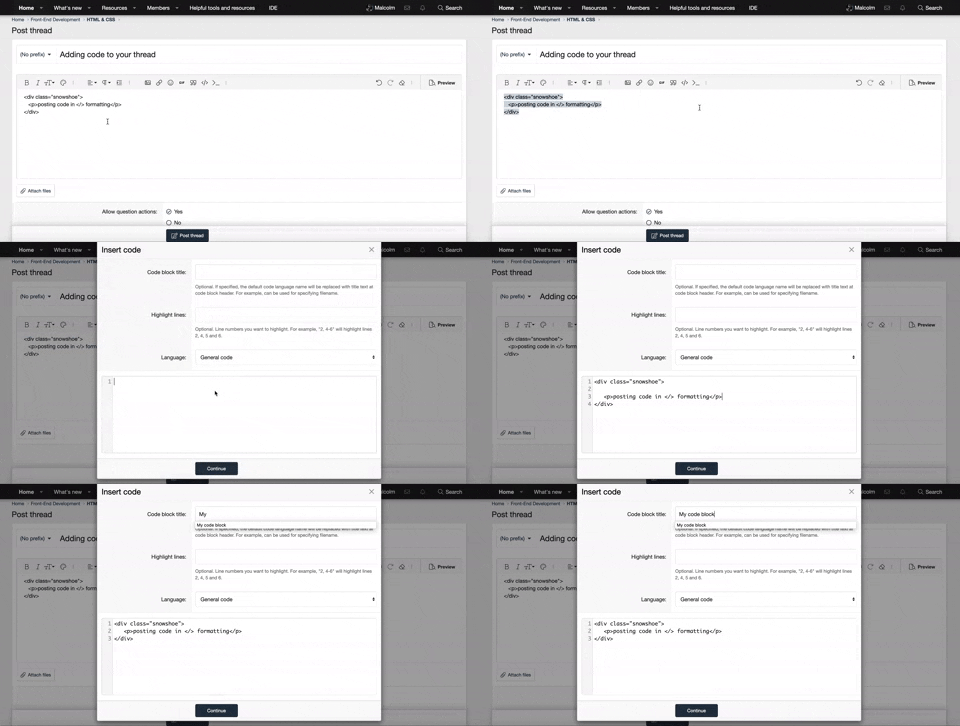
    • It is required to use our BBCode feature to display your code. While within the editor click < / > or >_ and place your code within the BB Code prompt. This helps others with finding a solution by making it easier to read and easier to copy.
    • You can also use markdown to share your code. When using markdown your code will be automatically converted to BBCode. For help with markdown check out the markdown guide.
    • Don't share a wall of code. All we want is the problem area, the code related to your issue.

    GIF shows where to locate </> in the thread and or post editor toolbar.
    To learn more about how to use our BBCode feature, review our "How to post your code into threads" here.

    Thank you, Code Forum.

Python How to resize a rectangle in pygame?

User8574

Active Coder
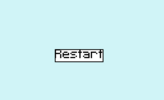
Screenshot 2022-08-26 155139.png

How do I resize the rectangle and the border to look decent; so creating a margin basically?

Is it in the rect.draw code or the rectangle variable?

Code:
        restart_button = font.render('Restart', False, "black").convert()
        restart_rect = restart_button.get_rect(midbottom = (400,220))
        
        pygame.draw.rect(screen, 'white', restart_rect, 0)
        pygame.draw.rect(screen, 'black', restart_rect, 2)
        screen.blit(restart_button, restart_rect)
 
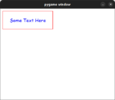
If you're trying to center the text, you can get the rect.center.

Python:
#! /usr/bin/env python3
import pygame as pg

# Initiate pygame and pygame fonts
pg.init()
pg.font.init()

# Screen width and height
width = 500
height = 400
screen = pg.display.set_mode((width, height))

# Create and set font and text
font = pg.font.SysFont(pg.font.get_fonts()[1], 20)
text = font.render('Some Text Here', True, (0,0,255))

# Create the rectangle
box = pg.Rect(10, 10, 220, 80)

running = True
while running:
    for event in pg.event.get():
        if event.type == pg.QUIT:
            running = False

    # Set background color
    screen.fill('white')

    # Draw the rectangle
    pg.draw.rect(screen, (255, 0, 0), box, width=1)

    # Get the text rect and center on the box rect
    text_rect = text.get_rect()
    text_rect.center = box.center

    # Blit to screen
    screen.blit(text, text_rect)

    pg.display.update()
 

Attachments

  • Screenshot from 2022-08-26 13-42-17.png
    Screenshot from 2022-08-26 13-42-17.png
    8.2 KB · Views: 3
Last edited:
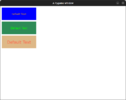
There are probably better ways to make a button using a function but, here is one way

Python:
# Imports
import pygame

# Initiate pygame and pygame fonts
pygame.init()
pygame.font.init()

# Define screen size and background color
screen_size = (800, 600)
screen_bg = 'white'

# Set display and window caption
screen = pygame.display.set_mode(screen_size)
pygame.display.set_caption('A Pygame Window')

# Define framerate and clock
frames = 60
clock = pygame.time.Clock()

# Define the button function
def button(*args, text='Default Text', **kwargs):
    # Create and draw the box
    box = pygame.Rect(args[0], args[1], args[2], args[3])
    pygame.draw.rect(kwargs['surface'], kwargs['bgcolor'], box, kwargs['border_width'])

    # Setup the font
    font = pygame.font.SysFont(kwargs['font'], kwargs['fontsize'])
    text = font.render(text, True, kwargs['fontcolor'])

    # Get the text rect and set to box center
    text_rect  = text.get_rect()
    text_rect.center = box.center

    # Blit to the surface
    kwargs['surface'].blit(text, text_rect)

# Set running to True and start the loop
running = True
while running:

    # Set screen background color
    screen.fill(screen_bg)

    # Check for pygame events
    for event in pygame.event.get():

        # If pygame event is quit, set running to false and break out of loop
        if event.type == pygame.QUIT:
            running = False

    button(10,10,220,80, surface=screen, bgcolor='blue', border_width=0, font='comicsansms',\
           fontcolor='orange', fontsize=15)

    button(10,100,220,80, surface=screen, bgcolor='seagreen', border_width=0, font='tahoma',\
           fontcolor='lime', fontsize=20)

    button(10,190,220,80, surface=screen, bgcolor='burlywood', border_width=0, font='verdana',\
           fontcolor='tomato', fontsize=25)

    # Update pygame display and set framerate
    pygame.display.update()
    clock.tick(frames)
newone.png
 
Last edited:
Last example of animated buttons with images

Python:
import pygame

pygame.init()
pygame.font.init()

# Setup pygame screen
screen_size = (800, 600)
screen = pygame.display.set_mode(screen_size)
pygame.display.set_caption('Pygame Button')

# Setup some colors
screen_bg = 'ivory2'

# Set framerate
fps = 60
framerate = pygame.time.Clock()

# Load and define button images. Three states normal, hover, and pressed
normal = pygame.image.load('normal.png')
hover = pygame.image.load('hover.png')
pressed = pygame.image.load('pressed.png')

# change cursor on hover
hand = pygame.SYSTEM_CURSOR_HAND

# Create Button class
class Button:
    def __init__(self, surface, image, pos, text, callback):
        '''
            Create a animated button from images
            self.callback is for a funtion for the button to do - set to None
        '''
        self.surface = surface
        self.image = image
        self.rect = self.image.get_rect(topleft=pos)
        self.text = text
        self.color = 'cyan'
        self.callback = callback


    # Define a function for writing text
    def write(self):
        font = pygame.font.SysFont('comicsansms', 18)
        text = font.render(self.text, True, self.color)
        text_rect = text.get_rect()
        text_rect.center = self.rect.center
        self.surface.blit(text, text_rect)


    # Define function for normal button state
    def normal(self):
        self.image = normal
        pygame.mouse.set_cursor()


    # Define function for mouse hover state
    def hover(self):
        self.image = hover
        pygame.mouse.set_cursor(hand)


    # Define function for pressed state
    def pressed(self):
        self.image = pressed


# Set a variabe to True and enter loop
running = True
while running:

    # Fill screen with background color
    screen.fill(screen_bg)

    # Start event loop
    for event in pygame.event.get():
        if event.type == pygame.QUIT:
            running = False

    # Create a button from the Button class with args for state, position, and callback
    button = Button(screen, normal, (100, 100), 'Button', None)

    # Get mouse button from pygame
    left, middle, right = pygame.mouse.get_pressed()

    # If cursor is over button change state to hover else state is normal
    if button.rect.collidepoint(pygame.mouse.get_pos()):
        button.color = 'white'
        button.hover()

        # If left mouse button pressed change state to pressed else hover
        if left and button.rect.collidepoint(pygame.mouse.get_pos()):
            button.color = 'black'
            button.pressed()
        # else:
        #     button.hover()
    else:
        button.normal()

    # Blit button to screen
    screen.blit(button.image, button.rect)
    button.write()

    # Set framerate and update
    framerate.tick(fps)
    pygame.display.update()

normal.pnghover.pngpressed.png
 
Last edited:

Buy us a coffee!

Buy me a coffee.
Back
Top Bottom