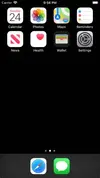
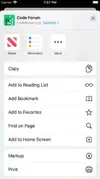
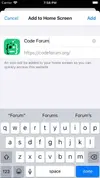
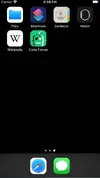
Follow along with the video below to see how to install our site as a web app on your home screen.
Note: This feature may not be available in some browsers.
Welcome to Code Forum!
Join a community that supports you and your coding journey from day one. We strive to be a friendly, supportive community that empowers everyone to be better developers. By registering with us, you'll be able to discuss, share and private message with other members of our community.
I've been meaning to help with this for a while, but seeing as I'm not busy with anything or slacking off, here's the guide for Android users.
I should note however, that I am not using Google Chrome - Android's default browser. I'm using Firefox for Android, so if you use a different web-browser, including Chrome, this does not apply to you. But, the process should nonetheless be identical. Anyway, let's start.
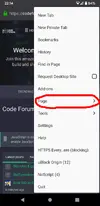
Step 1. First of all, click on your menu and find this sub-menu. Click on it.
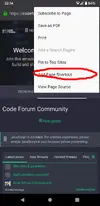
Step 2. Tap: "Add page shortcut". This will bring up a pop-up for you to add a shortcut to the home-screen.
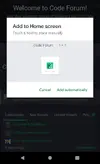
Step 3. Once you get this pop-up, you can tap and hold on it to put it wherever you want or you can choose to have it added automatically, without having to hold on it and drag it about.
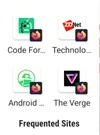
Step 4. As you can see, the site has been added along with any other sites you may have.
As stated, this applies to Firefox for Android, but the process should again, be identical on any other browser, including Chrome. Another thing to note, is that this will not be a regular mobile-app(If that's the idea that you're somehow getting). This is actually just a shortcut-link to the website itself, which will open itself up in your browser. Do not mistake it for a mobile-app.
Anyway, I hope this helps for any Android users here on CF.
As stated, I use Firefox for Android and thus' that was of course used for the Android tutorial. If I am correct though, I have heard that Mozilla is currently re-building Firefox for Android, with a new UI and completely different technology. So, whenever Mozilla does release that re-built version, I'll have to re-do the tutorial again - But that's only if the browser has changed drastically. If the UI remains identical to what it is now, I won't have to re-do the tutorial for Firefox on Android.
And again, the process should be identical to all other Android browsers.
No, not really. As stated, on Firefox for Android, you press the button: "Add page shortcut" - Keyword: "shortcut". So, it's pretty much a quicker way to open-up a bookmark and load it up in your browser. Sorry.
Also, another thing that I'd like to say to Android users is that, if you delete your current browser and switch to a different browser, the shortcuts you added via the old browser will no longer exist. Thus' you need to re-do them all.